
Connections
Add and manage multiple ClickHouse servers, connection presets, encrypted credentials and quick switching.
- In the app
- Admin › Connections
/admin/connections - Needs
- connections:view
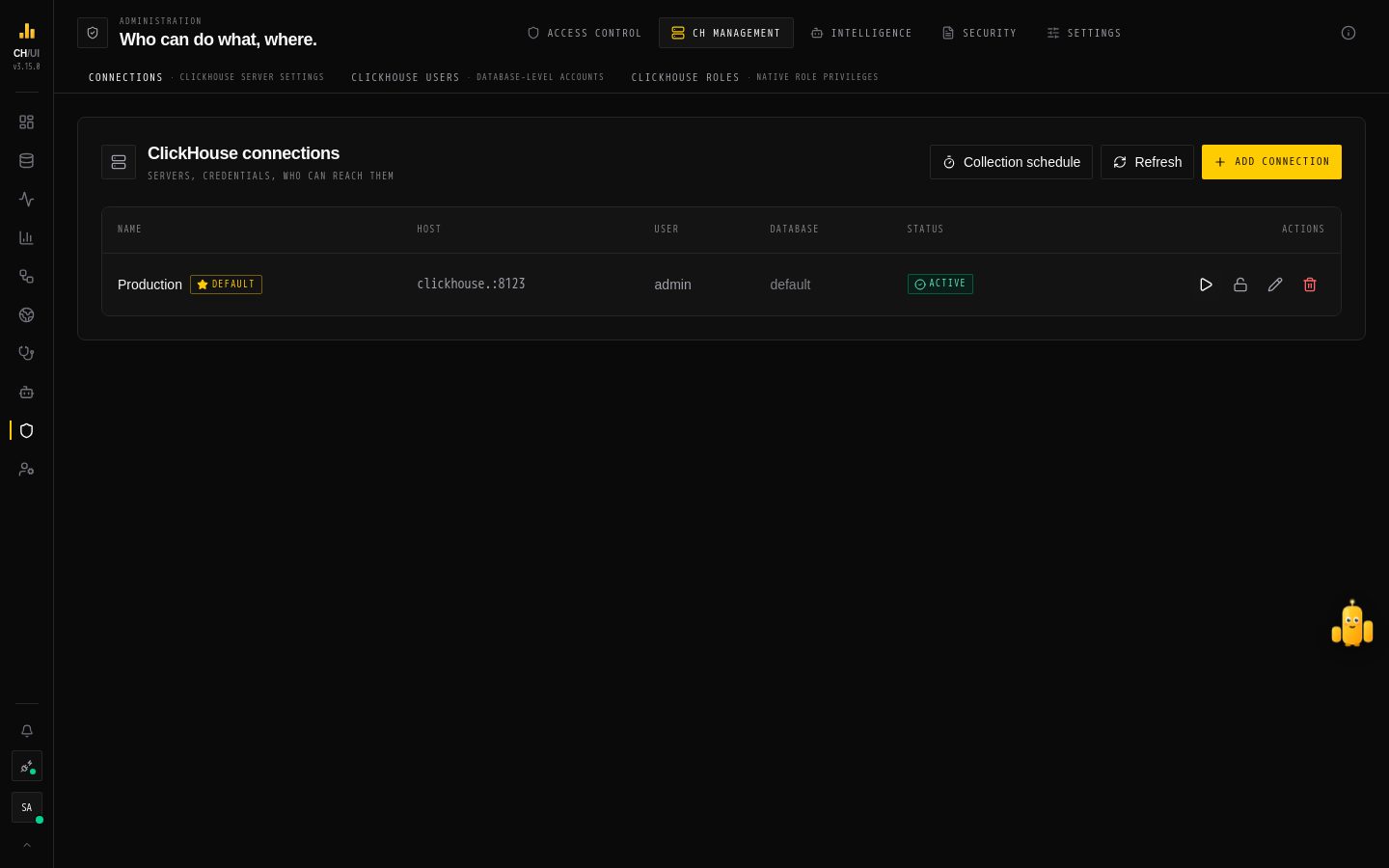
A connection is a ClickHouse server CHouse UI talks to. You can register many — one UI, many clusters — and switch between them. Manage them in Admin › Connections (connections:view; adding and changing needs connections:edit, removing connections:delete).
Add a connection
- Admin › Connections › Add connection.
- Fill in:
- Connection name — shown in the connection selector and on Fleet
- Host and Port — the ClickHouse HTTP interface, e.g.
clickhouse-serverand8123(8443with TLS) - Username and Password — encrypted with AES-256-GCM on the server and never sent to the browser
- Default database (optional) — empty uses the server's default
- SSL / TLS — connect over HTTPS
- Environment (optional) — see below
- Test connection shows the server version and latency, and checks the ClickHouse user against every feature. Create saves it once every required check passes.
CLICKHOUSE_DEFAULT_URL, CLICKHOUSE_DEFAULT_USER and CLICKHOUSE_PRESET_URLS pre-fill the form — see Environment variables.
Environment
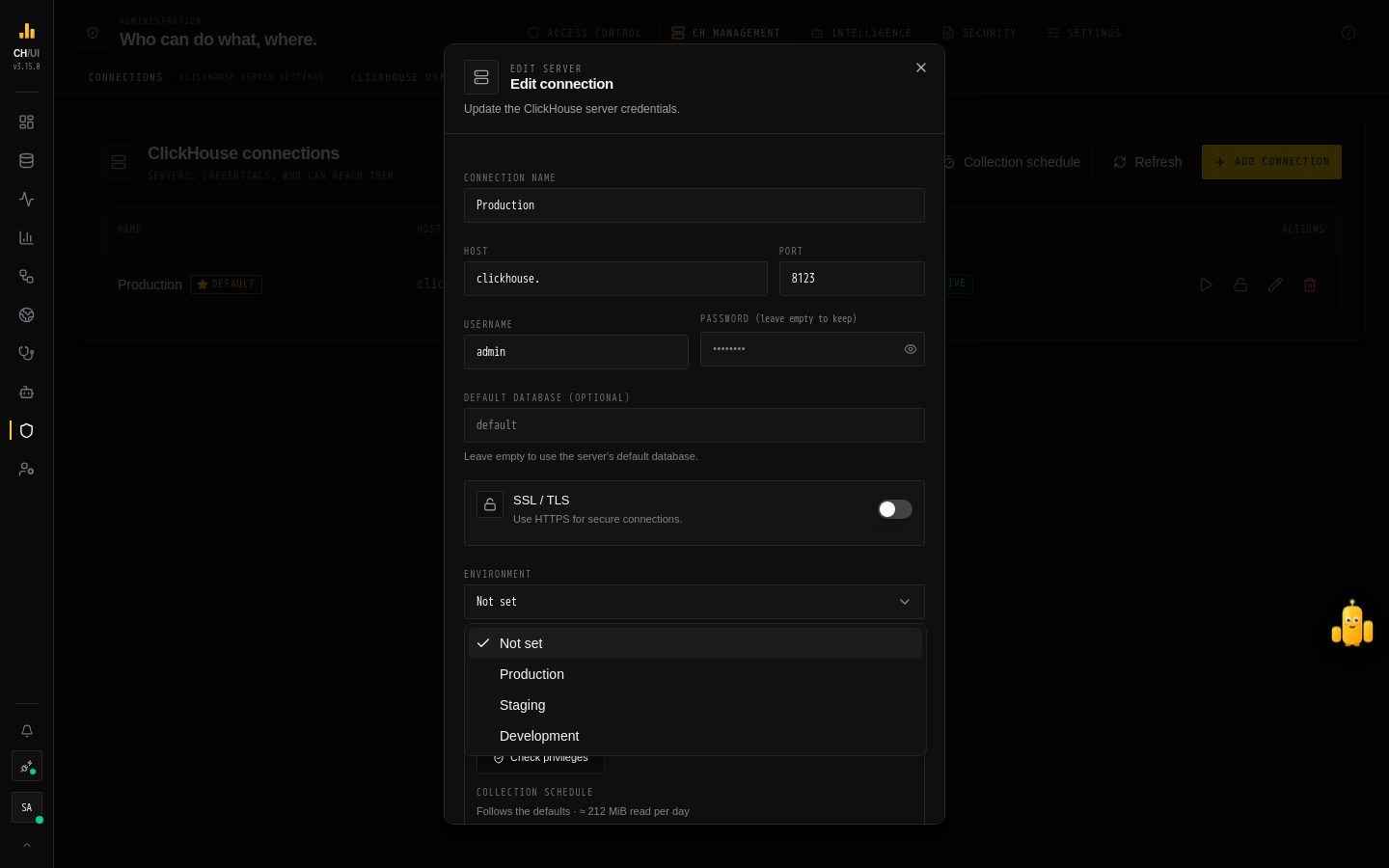 Mark a connection Production, Staging or Development
Environment (Not set, Production, Staging, Development) labels what the connection is. A Production connection shows a badge in the list, and makes every AI change on it one tier stricter: undoable changes ask once, and changes that ask once need a second approver. Leave it Not set for no effect.
Who can use it
A new connection is invisible to non-admins until a data access policy with an allow rule for it is attached to their role. The list shows who can reach each connection. One connection can be the default, selected first for new sessions; a connection can be set Inactive to hide it without deleting it.
Required ClickHouse privileges
Test connection checks the connection's ClickHouse user against what every feature needs — the explorer and editor, monitoring, Data Health, killing queries, changing tables in the default database, and ClickHouse users and roles — and lists each feature as granted or missing. Create and Update run the same check on the server, and save only when every required feature is granted.
When a required feature is missing, the dialog says Can't create this connection yet (or Can't save these changes yet), opens each failing feature with its GRANT statements and a Copy button, and highlights the username. Copy all grants (Copy required grants when an optional feature is missing too) copies the script for the required features. Run it as a ClickHouse admin — or grant it to a role the user has — and press Check again; once every required feature passes, save.
ClickHouse access admin (CREATE USER, ALTER USER, DROP USER, CREATE ROLE, ALTER ROLE, DROP ROLE, ROLE ADMIN and reading system.users, system.roles, system.grants, system.role_grants) is optional: those grants let the user create other users, so you may not want to give them to CHouse UI. Without them the feature is marked Optional in amber, the connection saves with a warning, and only ClickHouse users & roles won't work until you grant them.
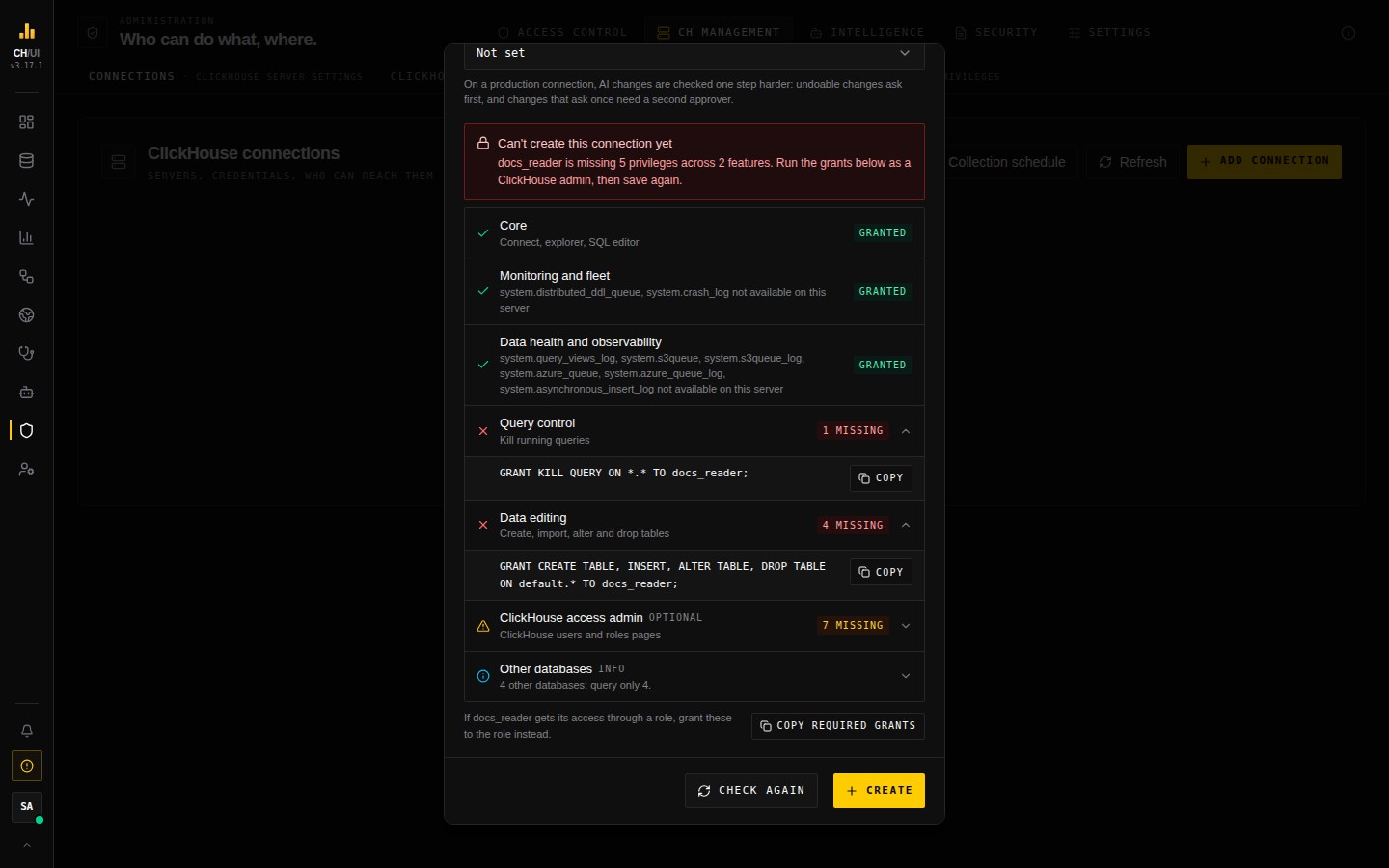 The ClickHouse user is missing required privileges: each failing feature lists its GRANT statements, and the optional ClickHouse access admin is marked in amber
-
Editing a connection checks again only when you change its host, port, user, password, SSL or default database; renaming it, or switching it on or off, doesn't. With the password field empty, the saved password is used — except when you change the host or port, or switch SSL off: then enter the password again, so the saved one never goes to another server.
-
Other databases (information only) lists what the user can do in each database other than the default one — Query and change, Query only or Some tables — with the
GRANTstatements for full access. Data editing is only required on the default database, so this never blocks the save; open it when the user should work across several databases.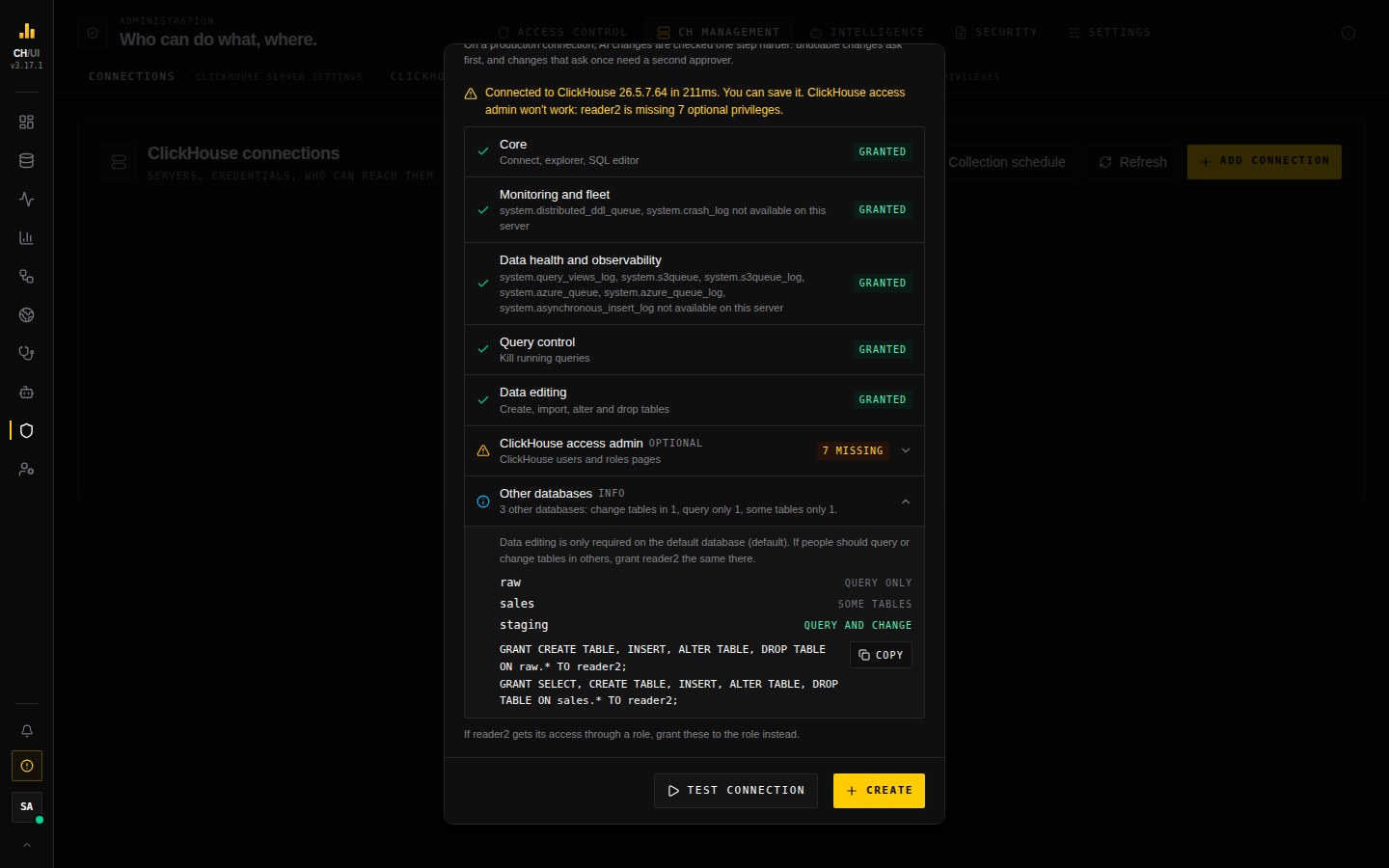 Information only: what the user can do in each other database, with the grants for full access
-
A table the server doesn't have is shown as not available and doesn't count. A check that fails for another reason, such as a timeout, blocks the save until Check again gets through — unless it is in an optional feature.
-
Existing connections keep working. Test on a row of the list warns when the user is missing something, optional features included.
The full list, how the check works and a script for a user that has everything are on ClickHouse privileges.
Collection schedule
The observability collectors read every connection's system tables on a schedule — see How data is watched. Collection schedule in the page header sets how often each collector runs for every connection; a connection's Edit dialog sets its own schedule, which wins over that. Reading the schedule needs connections:view, changing it connections:edit.
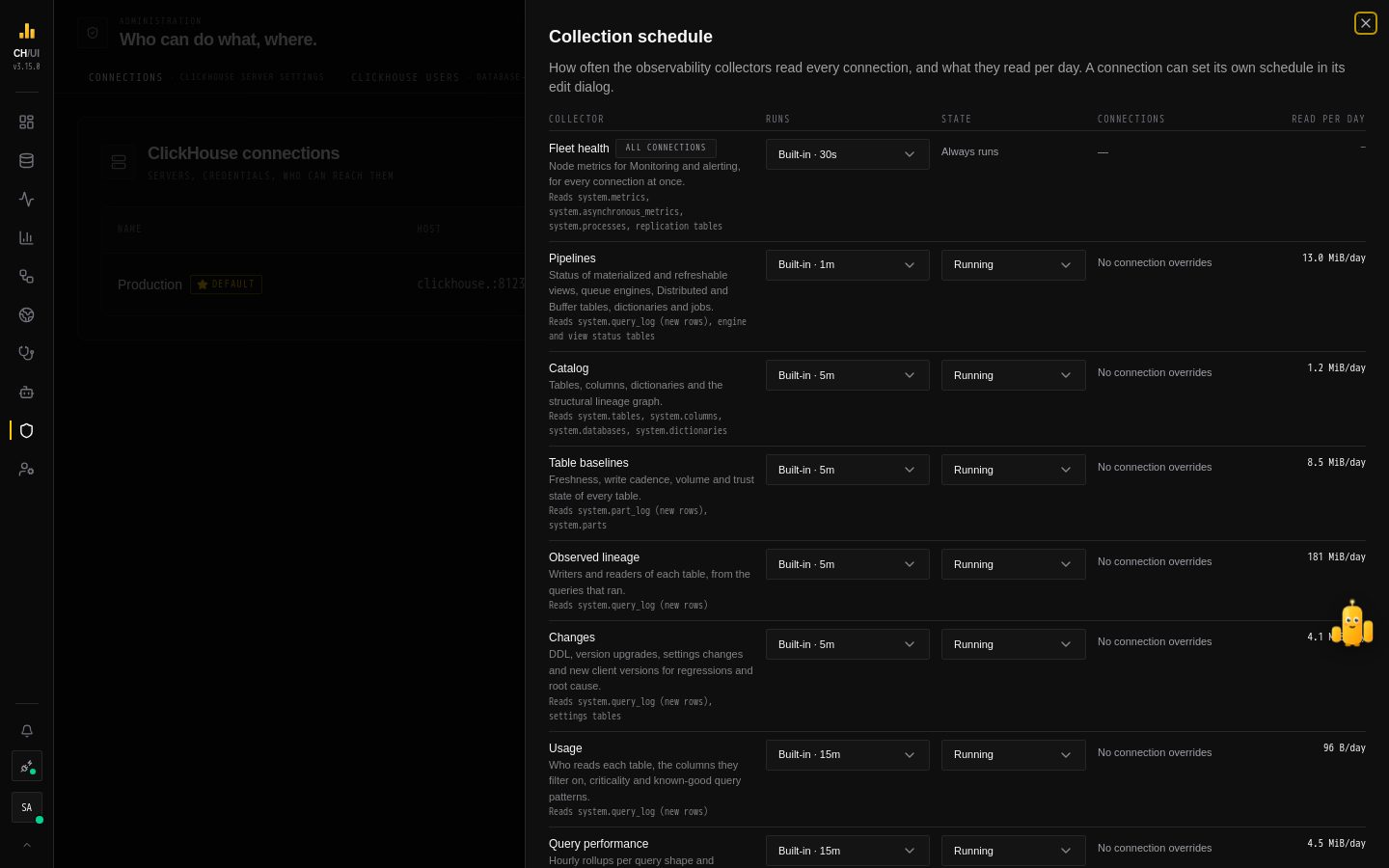 Collection schedule: how often each collector runs, for every connection
For each collector you choose:
- Runs — how often, from its fastest allowed interval up to once a day. Inherit follows the setting for every connection, or the built-in interval.
- State — Running or Paused. A paused collector stops reading that server and its Data pages stop updating; the Data page's status chip turns amber and names it. Fleet health can't be paused (Monitoring and alerts depend on it), and it runs once for all connections, so it has no per-connection setting.
Next to each collector you see its last run on that connection — how long it took, how many queries it ran and how much it read — and Read per day: that read multiplied by the runs a day at the chosen interval. In the schedule for every connection, Read per day is summed over the active connections. Changes apply within a few seconds on every server, with no restart, and are recorded in the audit log as observe.collectors_update.
Kind: shared login, role ceiling or personal
A connection is a shared login unless a super admin switches it. On a role ceiling its ClickHouse user holds no grant and each person is limited to the ClickHouse role mapped to their CHouse role. On a personal connection each person's statements run as their own ClickHouse user. On both, the host, port, TLS setting, user and password are changed in the connection's ClickHouse login panel. See Connection kinds and the role ceiling and Personal connections.
Remediation credential
In the same dialog, Remediation credential stores a second ClickHouse login, used only to run approved fixes. It is encrypted like the main password and can be removed at any time; without it, fixes can't run on this connection.
Grant the connection user what your team needs
The connection user's ClickHouse rights are the outer limit: CHouse UI's permissions and data access can only narrow them.
| Team need | ClickHouse grant |
|---|---|
| Query and explore | SELECT on the databases people use |
| Monitoring and data observability | Read access to the system tables on ClickHouse privileges |
| Loading data, scheduled-query destinations | INSERT (and CREATE TABLE for create-if-missing) on target databases |
| Schema management in the Explorer | CREATE, ALTER, DROP on target databases |
| Codec trials and upgrade checks | Write access to the scratch database (chouse_scratch) |
| ClickHouse users & roles | access_management |
Fixes don't need any of these on the main user — they use the remediation credential.
Credentials at rest
Connection passwords are encrypted with RBAC_ENCRYPTION_KEY and RBAC_ENCRYPTION_SALT. If those change, stored passwords can't be decrypted and must be entered again — see Secrets.