
Data access rules
Per-user and per-role database/table rules with wildcards, regex patterns, deny precedence and priority ordering.
- In the app
- Admin › Data access
/admin/data-access - Needs
- data_access:view
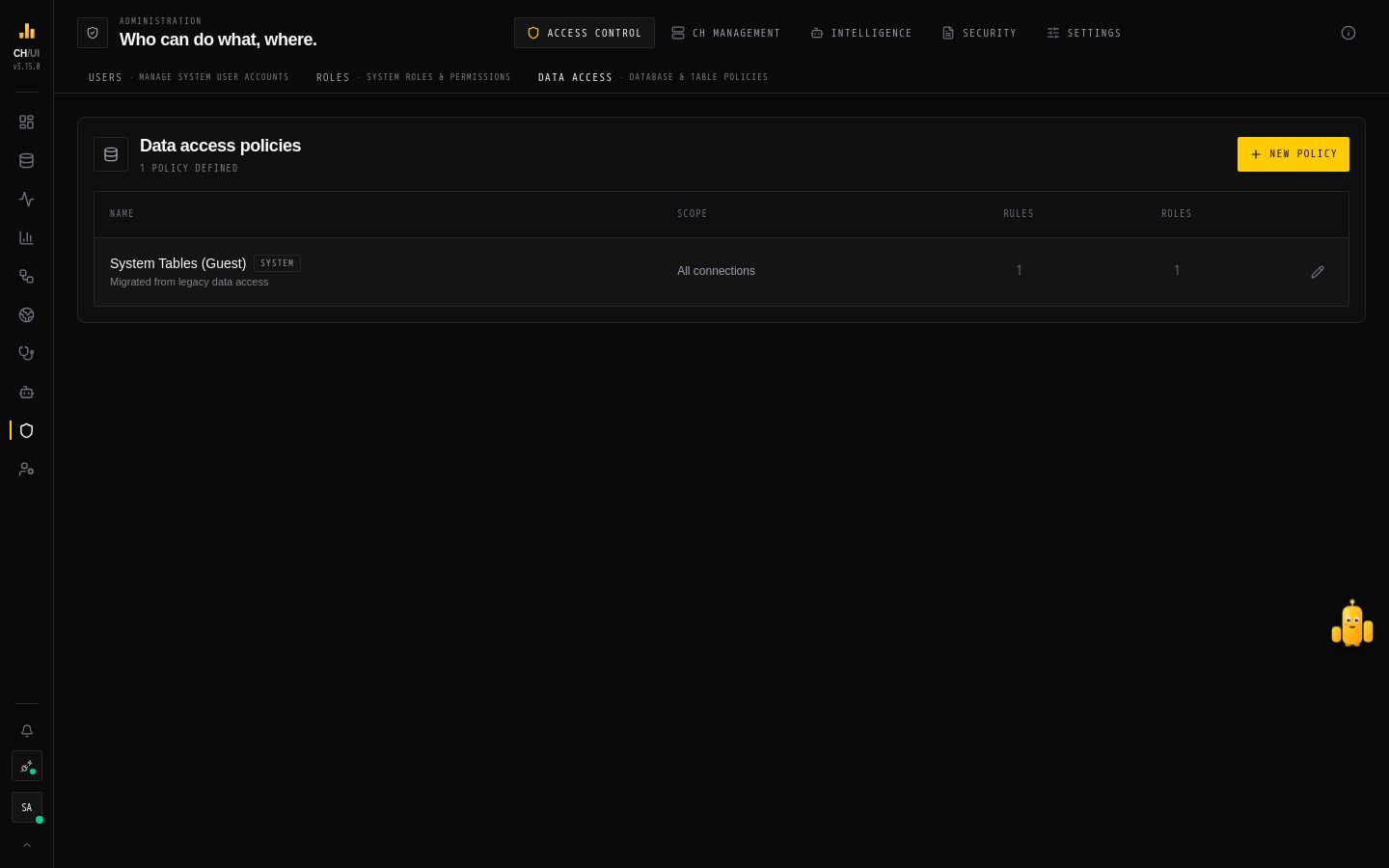
Permissions decide what a user can do: run queries, open Monitoring, edit roles. Data access policies decide what they can do it to: which connections they can reach, and which databases and tables on them. Every query is parsed on the server and checked against these rules before it reaches ClickHouse.
How it fits together
user ──has──▶ roles ──attach──▶ data access policies ──contain──▶ rules- A policy is a named, reusable bundle of rules, for example Prod analytics — read only.
- A rule is a database pattern, a table pattern, allow or deny, a priority, and optionally the one connection it applies to.
- Policies are attached to roles. A role can have several policies, and a policy can serve several roles. A user's effective rules are all the rules in the policies on all their roles.
There are no per-user rules: to give one person different access, give them a different role.
On a personal connection these rules do not decide which data a statement reaches: the person's own ClickHouse user does, and an account reaches the connection through its link to that user, not through a policy. Rules still limit which collected monitoring evidence a person sees there.
Which connections a user sees
A user can use a connection only when one of their policies has an allow rule scoped to that connection. Rules with no connection apply on every connection the user can already reach, but don't grant a connection by themselves. Super admins see every connection.
The same list decides the cards on Fleet and the connections the user's CLI and MCP tokens can use.
How a table is checked
For each database and table a statement touches:
- Collect the user's rules for the current connection.
- Sort them by priority, highest first. At the same priority, deny comes before allow.
- The first rule that matches decides — allow or deny.
- If nothing matches, access is denied.
Because the first match wins, a higher-priority allow beats a lower-priority deny. To carve out an exception, give it a higher priority than the rule it overrides.
| Pattern | Matches |
|---|---|
* | Everything |
analytics | Exactly analytics (case-insensitive) |
stg_* | Anything starting with stg_ |
/^(raw|stg)_/ | A regular expression, written between slashes |
Note: Queries against system and information_schema are allowed by default, so monitoring and metadata lookups keep working; those databases are hidden from the Explorer tree for non-admins. What a user sees in the Monitoring tabs is governed by the per-tab permissions (logs:view, parts:view, …).
System tables that show other people's work
Two groups of system tables are the exception. A statement that reads one needs a permission, wherever the table appears in it (a join, a subquery, a CTE):
Tables in system | Needs | Why |
|---|---|---|
query_log, query_thread_log, query_views_log, processes, text_log, session_log, crash_log, asynchronous_insert_log, opentelemetry_span_log, asynchronous_inserts, query_cache, zookeeper_log | query:history:view:all | They hold the text of statements other people ran |
users, roles, grants, role_grants, row_policies, quotas, quota_usage, quotas_usage, settings_profiles, settings_profile_elements, user_directories, quota_limits, zookeeper | clickhouse:users:view | They list ClickHouse users and what each may do |
An old log table that ClickHouse kept after an upgrade (query_log_0, query_log_1, …) counts as the log. Every other system table stays open. That includes system.mutations, system.distributed_ddl_queue and system.errors, which the Monitoring pages read and which can show parts of other people's statements (the text of a mutation or an ON CLUSTER statement, a fragment in an error message); treat SELECT on the system database as showing those.
Without query:history:view:all you still see your own statements: the Logs page and Live Queries ask the server, which returns only the statements CHouse UI sent for your account. The parts of the monitoring pages that read these tables directly show a note naming the permission instead. Admins are not affected.
What gets checked
ClickHouse itself parses each query before it runs: the server asks the
connection for EXPLAIN AST, which only parses and reads no data. Every table
and database in the result is then checked against the rules: joins,
subqueries, UNION arms, CTE bodies, IN some_table, dictGet/joinGet
lookups, INSERT … SELECT sources and query parameters such as
{t:Identifier}. An unqualified name is a table in the connection's default
database. Write system.parts, not parts.
For users who aren't admins, anything the check can't fully see is refused, with a message that says why:
- statements other than SELECT, INSERT, CREATE/DROP/TRUNCATE of tables, views and databases, common ALTER TABLE changes, DELETE/UPDATE, SHOW TABLES/DATABASES/CREATE, DESCRIBE, EXISTS, CHECK, EXPLAIN, USE, SET and KILL QUERY (for example OPTIMIZE, RENAME, SYSTEM, GRANT, SHOW COLUMNS);
- table functions that reach other data (
remote,merge,url,s3,file, …), engines other than the local ones,INTO OUTFILE, a materialized view withTO, andCREATE TABLE … AS another_table; - names written in backticks or double quotes that contain dots, spaces, quotes or brackets;
INSERT … VALUESrows that contain a subquery or a dictionary lookup.
Admins run all of these as before. If ClickHouse can't be reached, the query fails with "try again" rather than "access denied". A syntax error comes back as ClickHouse's own message.
The rules apply wherever data is read: the SQL editor, the Explorer, exports, the Data page's lineage and incidents, and every API, CLI and MCP call. A table you can't read never shows up, not even as a lineage node.
They also decide what the monitoring pages name. On Metrics, the largest tables, replication and parts pressure list only tables you can read, and the mutation impact simulator refuses a table, or a predicate that reads one, outside your rules. A sample error message is someone's failed query, so it is shown only to admins and holders of query:history:view:all. In an incident notebook, a query cell shows its saved rows only to readers whose own rules allow that query; everyone else sees the SQL and a note that the rows are withheld.
Create a policy
- Open Admin › Data access and choose New policy.
- Give it a name and, optionally, a description.
- Select the connections it configures. Each connection is set up on its own in the next step.
- For each connection, tick the databases or tables to allow, or use Add wildcard / pattern rule for patterns (
db/*//regex/, thentable/*). You need at least one rule to continue. - Save.
A policy does nothing until a role uses it.
Attach a policy to a role
- Open Admin › Roles and create or edit a role.
- In the data access step, pick one or more policies. Custom roles need at least one; built-in roles may have none.
- Save. The change applies to the next request of every user with that role.
Editing or deleting a policy also takes effect on the next request. System policies (marked System) can't be deleted.
Examples
| Goal | Rules |
|---|---|
Analysts read everything in analytics on prod | Policy Prod analytics: allow analytics / *, scoped to the prod connection |
…but not the pii_* tables | Add deny analytics / pii_* with a higher priority than the allow |
| Engineers read all staging databases on every connection they use | Allow /^stg_/ / * with no connection, plus an allow scoped to each connection they should reach |
Related
- Users & roles — who holds which role
- Permission catalog — what each role may do
- Security model — how the checks compose